
How to upgrade your GTM container when you use a Regex Lookup Variable for your Measurement ID
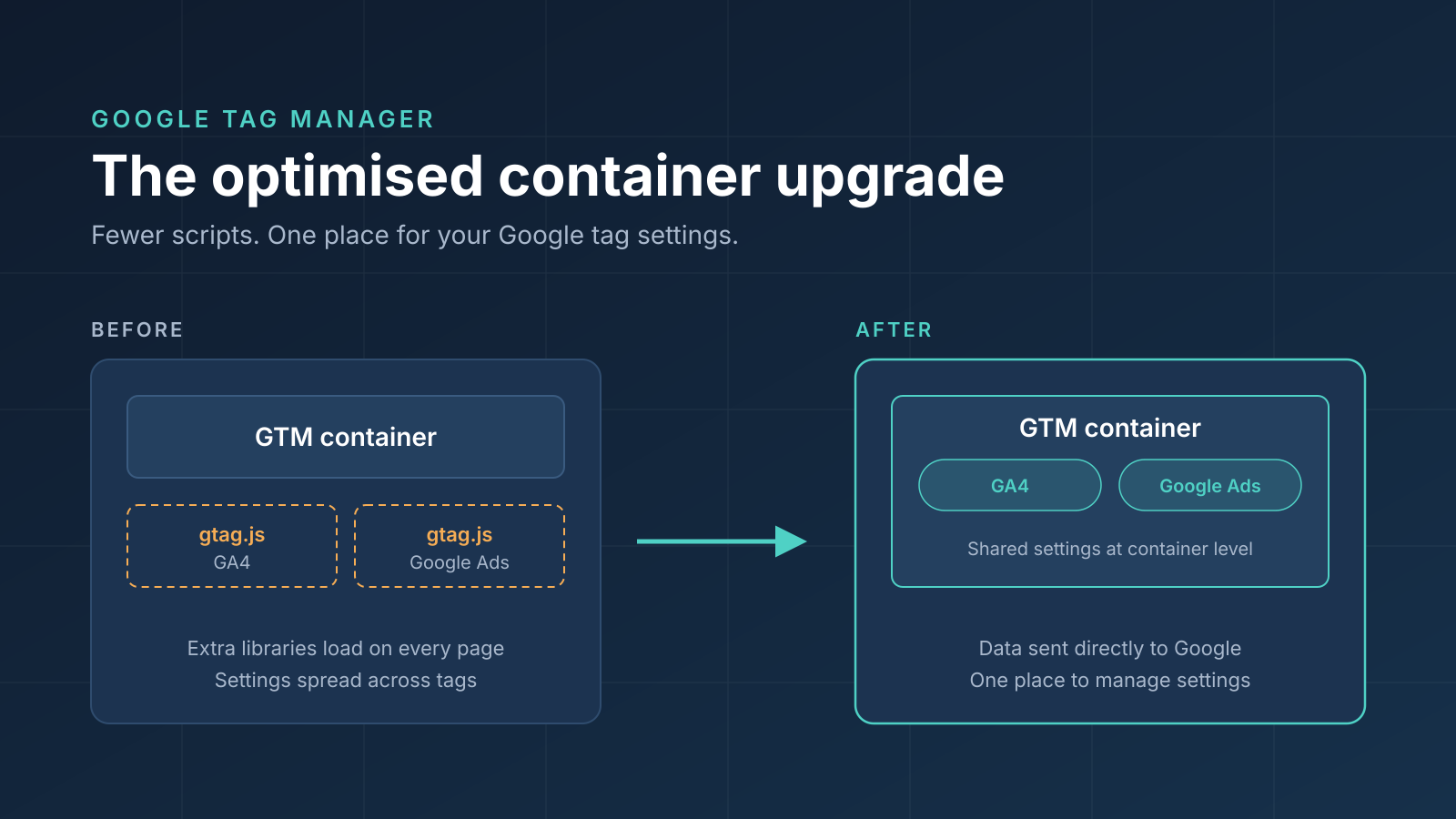
/If your Google Tag Manager container uses a Regex Lookup variable for your GA4 Measurement ID, the new container upgrade won't work. You may see GA4 greyed out stating ‘Ineligible for optimization’ and ‘This tag cannot be optimized because it uses a variable in the ID field’.
This applies to any variable in the Tag ID field, including a Lookup Table or even a Constant.

Why the Regex Lookup Gets in the Way
The optimisation flow links your container to each Google destination by its Measurement ID. When the ID is a variable such as {{Regex Lookup - GA4 Measurement ID}}, GTM can't tell which GA4 property the tag belongs to, so it can't consolidate it.
Updating your GA4 Configuration tag with the static ID for the upgrade solves that. Once the new Google Analytics destination tag is published you can then swap the original lookup variable back.
Step by Step
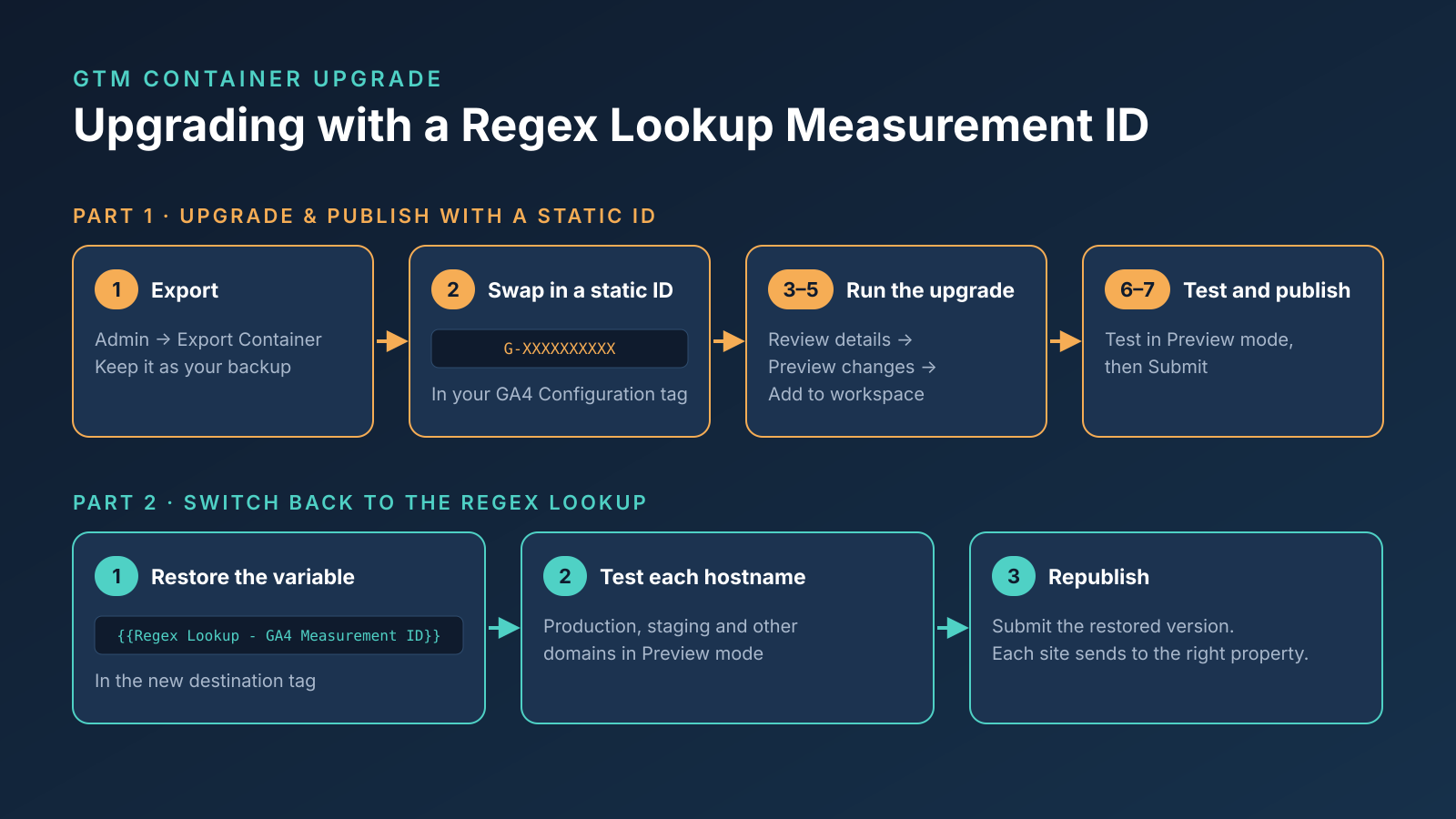
Part 1: Upgrade & Publish with a static ID
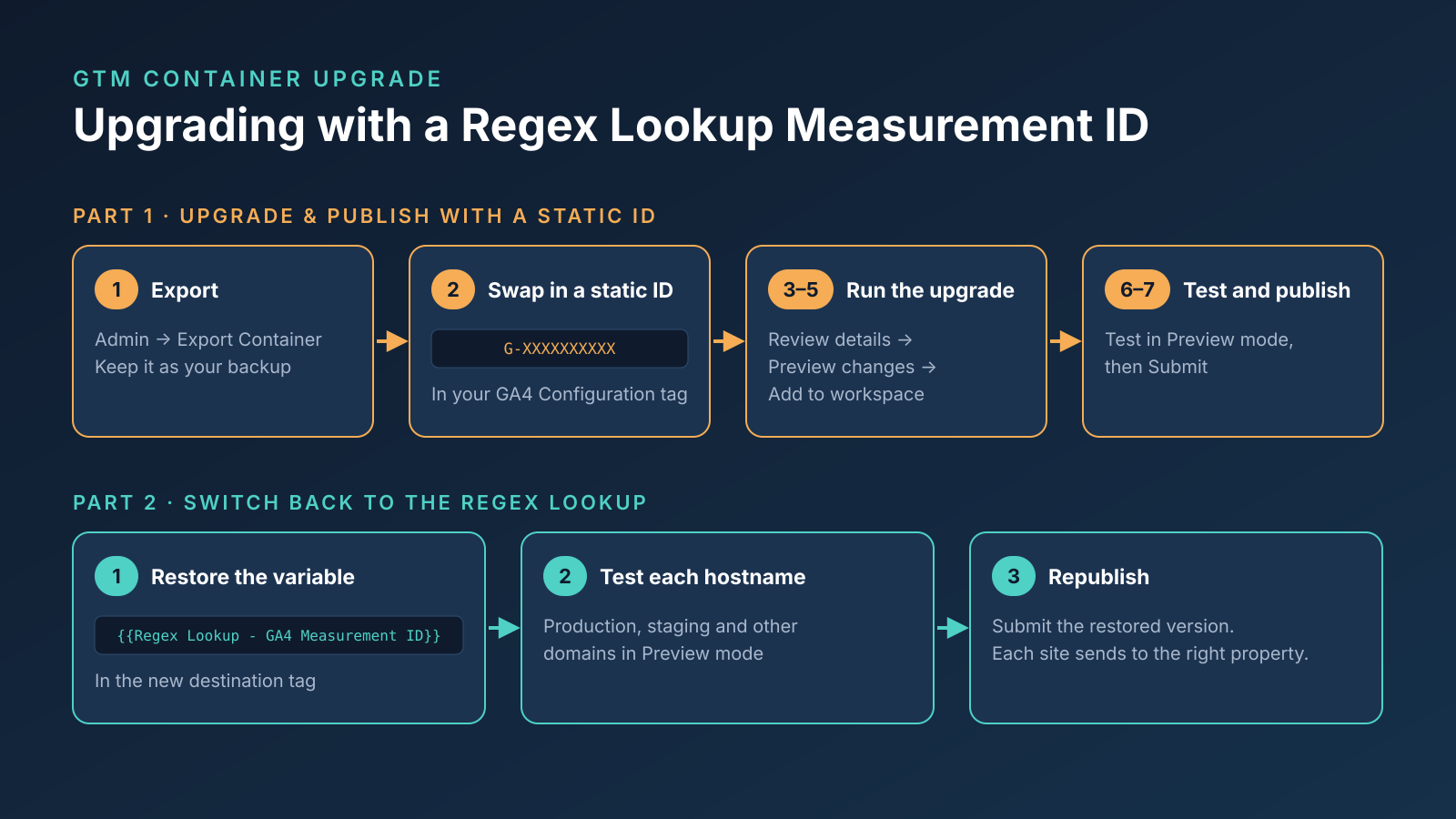
Export your container first (Admin → Export Container) so you have a backup.
Swap in the static ID. Open your GA4 Configuration tag and replace
{{Regex Lookup - GA4 Measurement ID}}with your production ID, for exampleG-XXXXXXXXXX. Save the tag.Start the upgrade. On the Overview page, click Review details in the optimisation banner. If your Google tags have conflicting settings, you'll see Get started instead, and GTM will ask you to choose which settings to keep.
Preview the changes. Click Preview changes to see exactly what will be added and removed.
Add to workspace. Click Add to workspace. Your Google tag is replaced with a Google Analytics destination tag that holds the static ID.
Test in Preview mode. Check that page views and your key events reach the production property.
Publish. Click Submit and name the version, for example "GTM optimisation upgrade (static ID)".
Part 2: Switch back to the Regex Lookup
Edit the destination tag. Open the new Google Analytics destination tag and replace the static ID with your original variable e.g.
{{Regex Lookup - GA4 Measurement ID}}. Save.Test each hostname. In Preview mode, load your production site, then your staging site or other domains, and check each one sends data to the right property.
Republish. Click Submit and name the version, for example "Restore Regex Lookup Measurement ID".
After You Republish
Realtime reports: check each GA4 property is receiving traffic from the right hostname.
Key events: confirm they're still being recorded in each property over the next few days.
FAQs
-
No. The upgrade is optional and Google won’t make any changes automatically. You can review the proposed changes before adding them to your workspace.
-
Yes. GTM flags any Google tag that uses a variable in the Tag ID field as ineligible, so the same static ID workaround applies.
-
No. Only the Google Configuration tag needs the static ID. Event tags that use your lookup variable stay as they are and keep sending to the right property.
-
Briefly. Between publishing the static ID version and republishing with your lookup variable, every hostname sends data to the production property. Do the switch at a quiet time and keep the gap short.
Need a Hand?
If your container uses lookup tables, multiple Google tags or cross-domain tracking, Trackify can run the upgrade for you and test it across all your properties. Get in touch.